
Selecting the right AI video generator comes down to one core question: Are you looking to hand-craft a customized video asset using granular design controls, or do you want to type a text prompt and receive a ready-to-publish video in three minutes?
That fundamental difference sets Canva AI Video apart from InVideo AI. Canva treats AI as an assistant within an established design workspace, giving you absolute control over typography, branding kits, and animation timing. InVideo AI functions as an end-to-end automated generator—taking a single topic prompt and auto-generating the script, voiceover, stock footage matching, captions, and background music in one pass.
In this hands-on breakdown, we put both platforms through standardized production benchmarks to analyze output quality, workflow bottlenecks, commercial licensing rules, and true cost-per-video metrics.
At a Glance: Core Architectural Differences
While both platforms claim to simplify video creation using artificial intelligence, their underlying execution models target completely different creative needs.
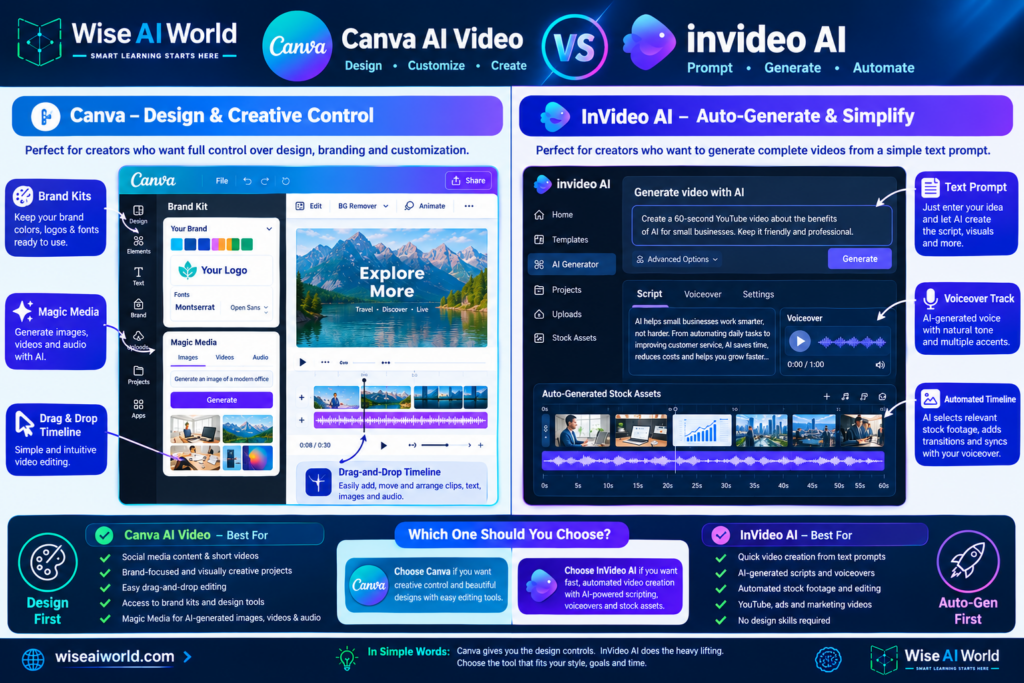
| Feature / Dimension | Canva AI Video | InVideo AI |
|---|---|---|
| Core Philosophy | Design-first platform with integrated AI generation modules | Prompt-first autonomous video generator |
| Script-to-Video Engine | Manual scene building assisted by Magic Write & Magic Media | Fully automated prompt-to-complete-video pipeline |
| AI Voiceovers & Cloning | Basic integrations (ElevenLabs app add-on required) | Native realistic AI voices + voice cloning included |
| Timeline Customization | Granular track control, keyframes, vector alignment | Text-prompt video editing + basic track swap UI |
| Brand Consistency | Exceptional (Central Brand Kits, custom fonts, exact Hex colors) | Moderate (Preset logos, custom font uploads on higher tiers) |
1. The Content Creation Workflow: Step-by-Step Benchmarks
To evaluate real-world production velocity, we tested both platforms on a standard assignment: “Create a 60-second vertical video for YouTube Shorts explaining 3 morning productivity habits for software developers.”
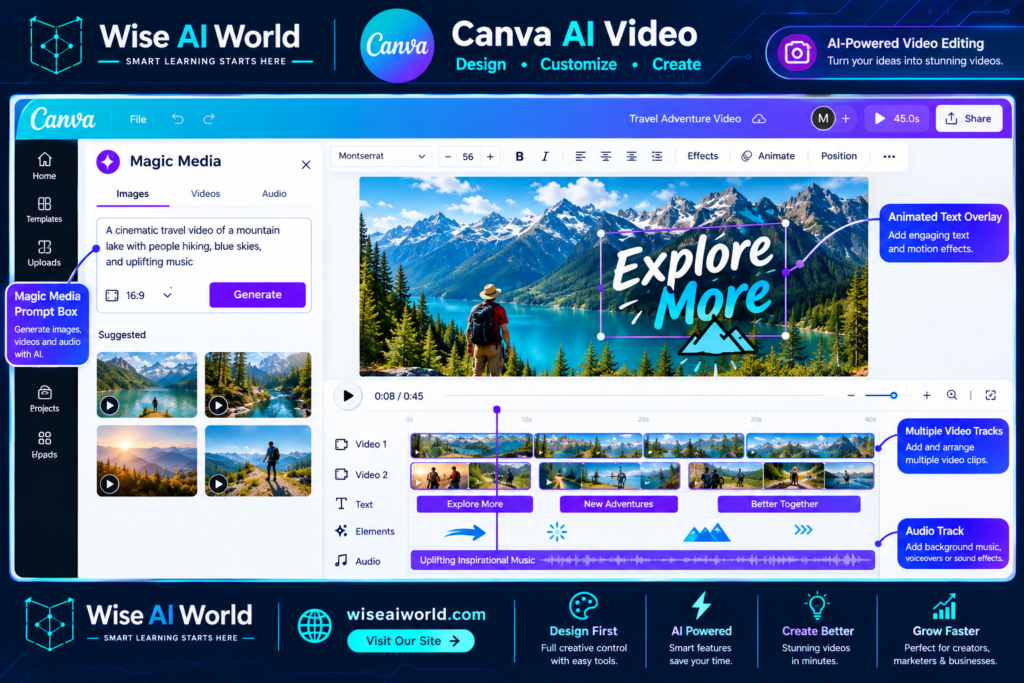
Workflow A: Creating in Canva AI Video
- Setup & Layout: Select the 1080×1920 Vertical Video template. You are presented with a blank multi-page storyboard timeline.
- Script Drafting: Open the Magic Write tool to generate a bulleted script draft. You copy-paste the text across individual scene frames manually.
- Asset Assembly: Use Magic Media (Runway/Pika underlying engines) to generate custom AI video clips, or search Canva’s built-in stock library (iStock/Getty integrations).
- Voiceover Sync: Record audio directly inside the app, or use an external ElevenLabs integration app to sync voice tracks onto the audio timeline manually.
- Styling & Text Effects: Apply brand fonts, precise text animations (Typewriter, Bounce, Fade), and custom layout elements across frames.
Total Time to Draft & Render in Canva: 18 – 25 Minutes.
Workflow B: Creating in InVideo AI
- Prompt Input: Open InVideo AI, select “YouTube Short,” and type:
"Create a 60-second video on 3 morning habits for software developers. Keep the tone energetic, use an American male voiceover, and add dynamic subtitles." - Autonomous Processing: InVideo generates the script, pulls stock footage (iStock/Storyblocks), places dynamic word-by-word captions, layers background music, and syncs the AI voiceover automatically.
- Refinement via Chat Prompting: To change a scene, type:
"Delete scene 2 and replace stock clip with a developer drinking coffee."InVideo updates the project automatically. - Manual Tweaks: Click “Edit Script” or “Edit Media” to swap individual stock clips or fix typos in the generated subtitles.
Total Time to Draft & Render in InVideo: 3 – 5 Minutes.
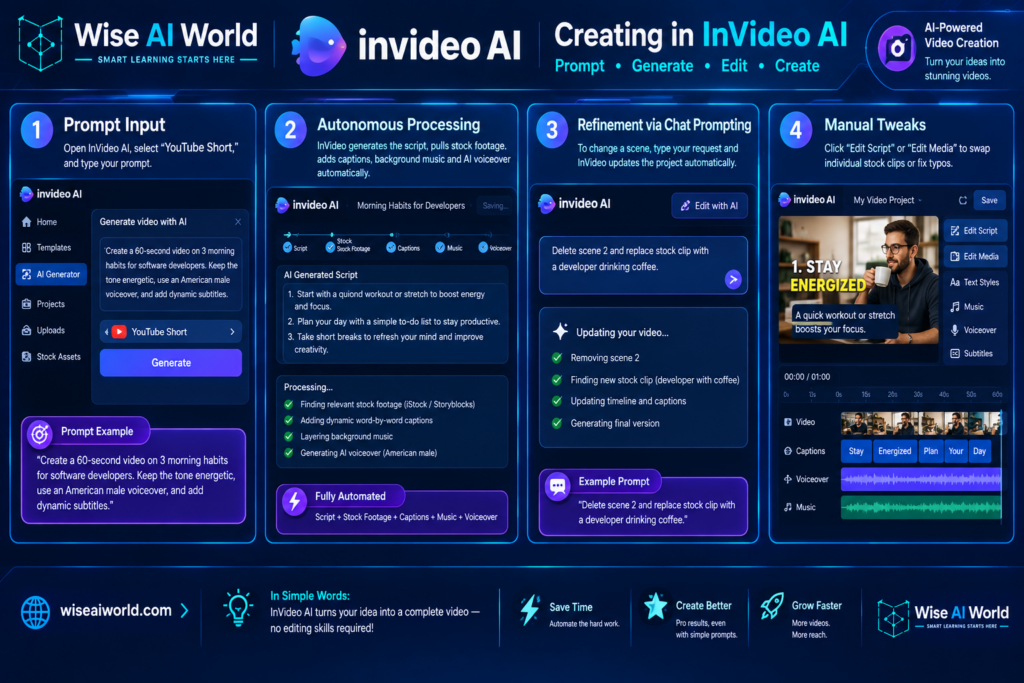
Capture a screenshot of InVideo AI generating a full timeline from a single prompt, highlighting the chat edit bar at the bottom.
Alt Text: InVideo AI script-to-video generation interface with text prompt command box.
2. Visual Control & Customization Precision
Where InVideo wins on speed, Canva wins on visual precision. Understanding where this trade-off occurs prevents costly workflow friction.
Canva’s Strength: Complete Design Freedom
In Canva, every element on screen is a distinct vector or media object. You can position text with pixel-level precision, set exact Hex code color palettes, apply brand guidelines, and adjust layer hierarchy freely. If your marketing campaign requires exact visual matching across social platforms, Canva’s design framework provides those controls.
InVideo’s Trade-Off: Rigid Layout Structure
InVideo AI generates complete videos rapidly, but making precise visual edits can be challenging. Adjusting text positions, tweaking font padding, or realigning brand assets relies on typing text commands or using basic overlay menus. While you can replace media clips quickly, customizing fine layout details requires significantly more effort than in a dedicated graphic editor.
3. AI Voiceovers, Scripting, and Audio Quality
High-performing social video relies heavily on strong audio production. Here is how both systems compare when handling narration and soundtrack balancing.
| Audio Factor | Canva AI Video | InVideo AI |
|---|---|---|
| Native Text-to-Speech Quality | Basic / Robotic (Requires 3rd-party apps for natural voices) | High (Includes realistic human-like voice models with natural pacing) |
| Voice Cloning Support | No native support (Requires external ElevenLabs integration) | Yes (Record a 30-second audio sample to clone your voice) |
| Auto-Ducking & Audio Mixing | Manual keyframing and volume track adjustments required | Automated (Lowers background music during spoken voiceovers) |
4. Pricing Structure & Generation Credit Consumption
Understanding the true cost per video requires looking beyond baseline subscription prices to examine how generation credits are calculated on paid tiers.
Canva Pricing Model (Pro / Teams)
- Canva Pro ($15.00/month or $120/year): Grants full access to Canva’s design suite, brand kits, and premium stock libraries.
- Generative AI Credits: Includes 500 Magic Media queries per month. Generating a 4-second AI video clip consumes 1 credit. Using standard stock video clips consumes 0 credits.
- Cost Predictability: High. You can produce unlimited video projects using standard stock footage and template layouts without running out of generation credits.
InVideo AI Pricing Model (Plus / Max)
- Plus Plan ($25.00/month or $240/year): Includes 50 minutes of AI video generation per month and 80 iStock footage calls.
- Max Plan ($60.00/month or $576/year): Includes 200 minutes of AI video generation per month and 320 iStock footage calls.
- Cost Predictability: Usage-based. Re-generating entire videos or testing multiple complex prompts consumes your monthly minute allowance quickly.
5. Licensing, Commercial Use, and Watermark Risks
If you create video content for commercial clients or monetized media channels, verifying licensing terms is essential to prevent copyright strikes.
Canva Commercial Licensing
Canva Pro grants a broad, simple commercial license for finished exports. As long as your exported video combines multiple elements (e.g., text overlays, stock footage, and graphics), you can use it for commercial ads, YouTube monetization, or client deliverables. Standalone media clips cannot be extracted and resold directly.
InVideo Commercial Licensing
InVideo integrates licensed assets from storyblock libraries and iStock. On paid subscription plans, watermarks are removed and full commercial rights are granted upon export. However, using the free tier leaves large watermarks on screen and restricts commercial monetization on platforms like YouTube.
Final Verdict: Which Tool Should You Choose?
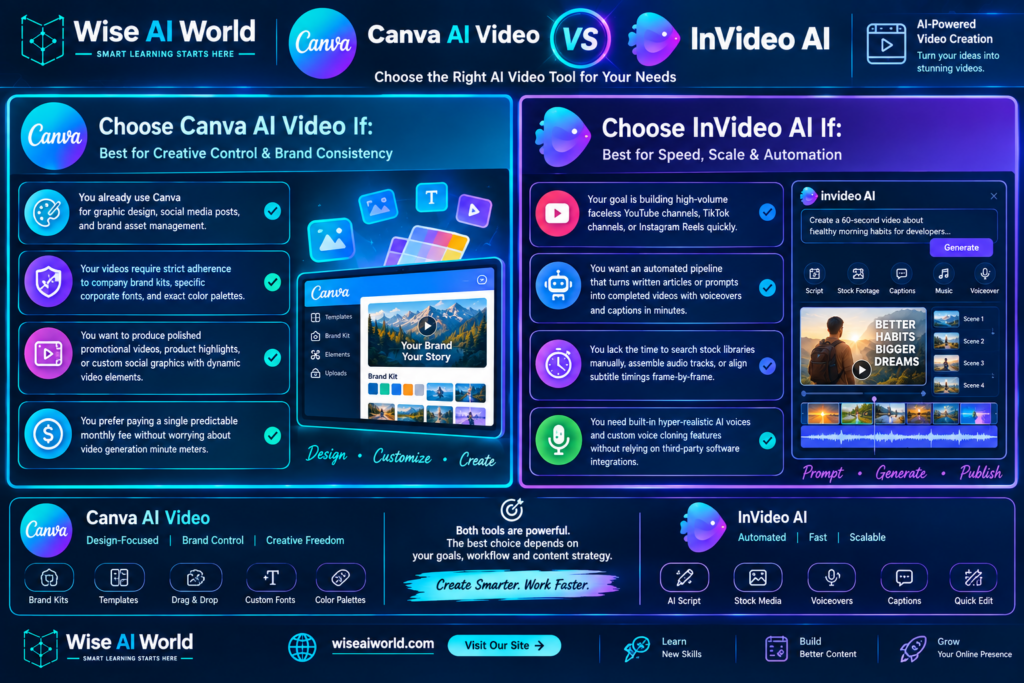
Choose Canva AI Video If:
- You already use Canva for graphic design, social media posts, and brand asset management.
- Your videos require strict adherence to company brand kits, specific corporate fonts, and exact color palettes.
- You want to produce polished promotional videos, product highlights, or custom social graphics with dynamic video elements.
- You prefer paying a single predictable monthly fee without worrying about video generation minute meters.
Choose InVideo AI If:
- Your goal is building high-volume faceless YouTube channels, TikTok channels, or Instagram Reels quickly.
- You want an automated pipeline that turns written articles or prompts into completed videos with voiceovers and captions in minutes.
- You lack the time to search stock libraries manually, assemble audio tracks, or align subtitle timings frame-by-frame.
- You need built-in hyper-realistic AI voices and custom voice cloning features without relying on third-party software integrations.
Disclosure: WiseAIWorld tests software suites using standardized performance benchmarks. Some product links on this page contain affiliate tracking links. If you subscribe through our links, we may earn a small commission at no additional cost to you.

Manish Prakash Dubey is an AI educator and technology writer based in India. He founded WiseAIWorld to make artificial intelligence simple and practical for students, professionals, and beginners. His work focuses on AI basics, machine learning, deep learning, NLP, computer vision, and real-world AI tools.
