
Microsoft has made a bet that is hard to miss. In 2026, the company announced plans to invest 146 billion US dollars in AI infrastructure, doubling its prior spending according to XtendedView. At the centre of that bet is Microsoft Copilot, an AI assistant woven into virtually every Microsoft product used by businesses worldwide, from Word and Excel to Outlook, Teams, and Windows itself.
If you use any Microsoft product at work, Copilot is either already part of your environment or will be soon. This guide explains what it is, what it can actually do, how much it costs, where it delivers genuine value, and where its limitations are honest enough to affect whether the investment makes sense for you or your organization.
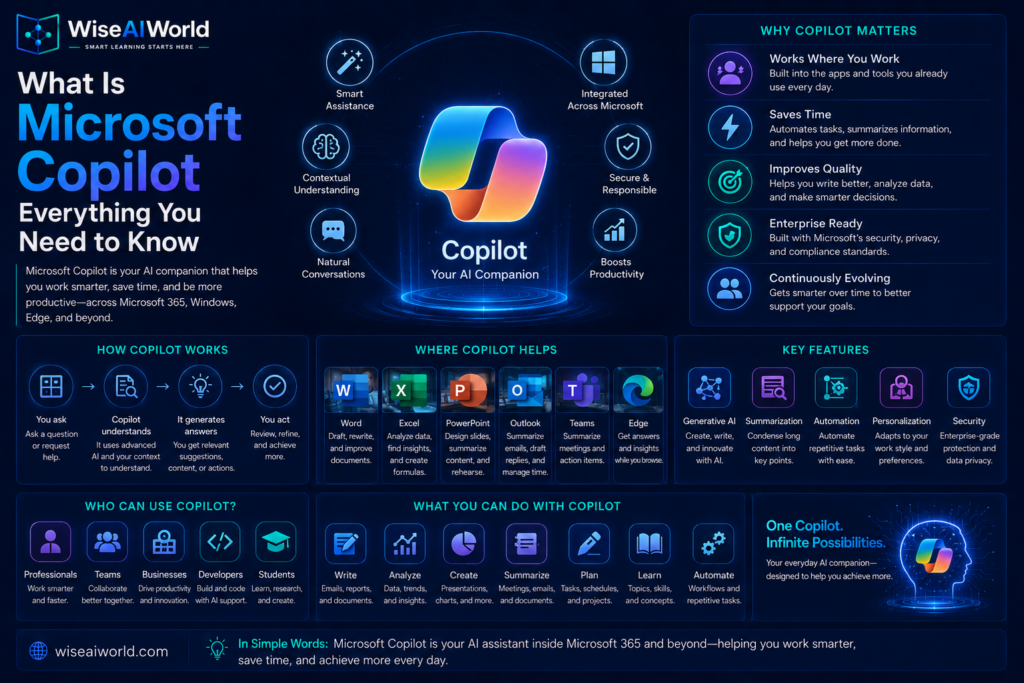
What Is Microsoft Copilot?
Microsoft Copilot is an AI assistant integrated across Microsoft’s product ecosystem. It is powered by large language models through Microsoft’s Azure OpenAI Service, including GPT-series models from OpenAI alongside other reasoning models. According to Dynamics Smartz, as of early 2026, Microsoft has added model choice inside Excel’s Agent Mode, allowing users to select between Anthropic and OpenAI reasoning models depending on the task, giving organizations flexibility rather than locking them into a single AI provider.
What makes Copilot distinct from and is its integration with Microsoft Graph, the intelligence backbone that connects Copilot to your organization’s emails, calendar, files, meetings, and chats. This means Copilot does not just answer general questions. It can summarize the emails you received this morning, draft a document based on a meeting you had yesterday, pull data from a spreadsheet stored in SharePoint, and create a PowerPoint presentation from a Word document, all within the applications you already use.
The Microsoft Copilot Product Family Explained
One of the most confusing things about Microsoft Copilot is that the name covers several distinct products that work differently and are priced separately. Understanding which product does what is essential before deciding whether or how to adopt it.
Microsoft Copilot Free
The free version of Copilot is available through Bing, the Edge browser, and Windows. It provides access to GPT-powered chat, document summarization, content generation, and a limited number of image generation credits through Microsoft Designer. According to Eesel AI’s pricing guide, the free tier has lower priority during peak hours, a daily cap on image creation, and crucially, no connection to Microsoft 365 desktop apps. It works for casual personal use but is not suited to heavy professional workloads.
Copilot Pro
Copilot Pro is designed for individual users and costs 20 US dollars per user per month according to Copilot Experts. It provides priority access to the latest AI models, 100 image generation credits per day, and integration with Microsoft 365 personal and family subscription apps including Word, Excel, PowerPoint, and Outlook. This is the right tier for freelancers, consultants, and individual professionals who want AI assistance integrated into their personal Microsoft 365 subscription.
Microsoft 365 Copilot Business
This plan is designed for organizations with up to 300 users and currently carries promotional pricing of 18 US dollars per user per month, running through June 2026, after which it increases to 21 US dollars per user per month according to Copilot Experts. It requires a qualifying Microsoft 365 Business plan as a base license and provides the full Copilot experience across Word, Excel, PowerPoint, Outlook, and Teams.
Microsoft 365 Copilot Enterprise
The enterprise plan costs 30 US dollars per user per month and is designed for medium to large organizations. According to Dynamics Smartz, enterprise customers also receive Copilot for Sales, Copilot for Service, and Copilot for Finance bundled at no additional cost. This tier connects to the organization’s full data through Microsoft Graph, enabling the most powerful cross-application AI assistance.
GitHub Copilot
GitHub Copilot is a separate product specifically for software developers, providing AI-assisted code completion, code review, and natural language to code generation directly inside development environments like Visual Studio Code. According to GetPanto, GitHub Copilot reached 4.7 million paid subscribers by January 2026, a 75 percent year-over-year increase, and is deployed at approximately 90 percent of Fortune 100 companies.
What Can Microsoft Copilot Actually Do?
Copilot’s capabilities vary by application, but the core value proposition is consistent: it brings AI assistance directly into the tools where your work already lives, without requiring you to switch to a separate application.
Copilot in Word
In Microsoft Word, Copilot can draft documents from a brief description or a set of bullet points, rewrite existing sections in a different tone or style, summarize long documents into key points, and suggest improvements to structure and clarity. You can instruct it using natural language directly within the document, and it generates content that you can accept, edit, or reject.
Copilot in Excel
In Excel, Copilot can analyze data and highlight patterns, generate formulas from plain language descriptions, create charts and visualizations, and suggest next steps based on your data. A government pilot cited by Dynamics Smartz found users saving nearly an hour per day on summarization and drafting tasks, with 61 percent reporting measurable improvements in work quality.
Copilot in Outlook
In Outlook, Copilot can summarize long email threads into key points and action items, draft replies based on context from the conversation, flag important emails, and help you manage your inbox more efficiently. For professionals dealing with high email volumes, this is one of the most immediately time-saving capabilities in the entire product.
Copilot in Teams
In Microsoft Teams, Copilot can transcribe and summarize meetings in real time, identify action items and decisions from meeting recordings, answer questions about what was discussed, and help you catch up on meetings you missed. This addresses one of the most common workplace productivity pain points: the time consumed by attending or reviewing meetings.
Copilot in PowerPoint
In PowerPoint, Copilot can create a presentation from a Word document or a text description, suggest design improvements, add speaker notes, and summarize existing presentations. This is particularly useful for professionals who need to produce presentations frequently but are not experienced designers.
Copilot Pages and Copilot Studio
Copilot Pages is a collaborative AI workspace where teams can share and build on AI-generated content together. Copilot Studio is a platform that allows organizations to build custom AI agents tailored to specific business processes, with over 230,000 organizations using it to build custom agents according to XtendedView.
How Many People Use Microsoft Copilot?
The adoption picture for Microsoft Copilot in 2026 is more nuanced than the headline numbers suggest. According to XtendedView, Microsoft Copilot reached 33 million active users across web, apps, and Windows platforms in 2026, with 15 million paid Microsoft 365 Copilot seats and approximately 70 percent of Fortune 500 companies having adopted Microsoft 365 Copilot in some form.
However, the honest context matters here. According to AI Business Weekly, only 3.3 percent of Microsoft 365’s 450 million subscribers pay for Copilot, which is the lowest paid conversion rate of any major AI platform relative to its addressable base. Three factors explain this: the 30 US dollar per user per month price premium is difficult to justify without clear productivity ROI data, 44.2 percent of lapsed users cite distrust of Copilot’s answers as their primary reason for stopping, and when given a choice, most employees prefer ChatGPT for general knowledge work.
According to GoSearch’s analysis, only about 6 percent of organizations that piloted Copilot moved to larger-scale deployment, and the typical pattern is that usage spikes in week one and then plateaus by month three as employees continue working across tools Copilot cannot see. Copilot performs best on Microsoft 365-specific workflows like meeting summaries and email drafting, where it integrates directly with organizational data through Microsoft Graph.
Where Microsoft Copilot Genuinely Delivers Value
Despite the adoption challenges, Copilot delivers measurable value in specific scenarios. According to Dynamics Smartz, a Forrester Total Economic Impact study estimates a potential ROI of 116 percent over three years for enterprise deployments, with projected SMB ROI ranging from 132 percent to 353 percent. The study also estimates roughly 8 hours of monthly time savings per user.
The scenarios where Copilot consistently delivers the strongest results are meeting summarization in Teams, email management in Outlook, first-draft document creation in Word, and data analysis in Excel. These are tasks where the integration with organizational data through Microsoft Graph provides genuine advantages that a standalone tool like cannot replicate without additional setup, because ChatGPT does not have access to your organization’s email threads, calendar, or SharePoint files by default.
Microsoft Copilot vs ChatGPT vs Google Gemini
The honest comparison between these three tools is not about which AI model is more capable in the abstract, but about which tool fits your existing workflow most naturally.
Copilot wins clearly for organizations already invested in the Microsoft 365 ecosystem. The depth of integration into the specific applications where work happens, combined with access to organizational data through Microsoft Graph, provides workflow value that neither ChatGPT nor Gemini can match for Microsoft-centric teams without significant additional configuration.
ChatGPT wins for general knowledge work, creative tasks, and situations where the quality of the AI’s reasoning and writing matters more than integration with a specific suite of productivity applications.
The practical implication is that for many professionals, the right answer is using Copilot for Microsoft 365-specific tasks while keeping ChatGPT or Gemini available for general research and creative work. These tools complement rather than replace each other in most real workflows.
Is Microsoft Copilot Worth the Cost?
The honest answer depends almost entirely on how heavily you use Microsoft 365 applications and which specific tasks consume the most time in your role.
If you spend significant time in meetings that need summarizing, managing high email volumes, producing regular documents and presentations, or analyzing data in Excel, the productivity gains are likely to justify the cost. The Forrester study’s estimate of 8 hours of monthly time savings per user translates to meaningful value at professional hourly rates.
If your work is primarily done outside Microsoft 365 applications, or if you primarily need general AI assistance for research and writing rather than integration with organizational data, the 30 US dollar per user per month price point is difficult to justify compared to alternatives priced at 20 US dollars per month with broader general capability.
The most common advice from enterprise deployments is to run a structured pilot with a specific team and specific use cases before committing to organization-wide licenses, measuring actual time savings against the cost before scaling. The 6 percent full-deployment rate following pilots, cited by GoSearch, suggests that many organizations find the value case stronger in theory than in practice until they identify the specific workflows where Copilot’s integration advantage is most pronounced.
Key Takeaways
- Microsoft Copilot is an AI assistant integrated across Microsoft 365 applications including Word, Excel, PowerPoint, Outlook, and Teams, powered by GPT models through Azure OpenAI Service.
- Its key advantage over standalone AI tools is access to organizational data through Microsoft Graph, enabling context-aware assistance within the apps where work already happens.
- The product family includes a free tier, Copilot Pro at 20 US dollars per month for individuals, Business at 18 to 21 US dollars per user per month, and Enterprise at 30 US dollars per user per month.
- Microsoft Copilot has 33 million active users in 2026, with 70 percent of Fortune 500 companies having adopted it in some form, but only 3.3 percent of Microsoft 365 subscribers pay for it.
- It delivers the strongest results for meeting summarization, email management, document drafting, and Excel data analysis within Microsoft 365 workflows.
- For organizations not primarily working within Microsoft 365, the 30 US dollar per user per month price is difficult to justify compared to general-purpose alternatives.
Conclusion
Microsoft Copilot is not trying to be the best AI in the world in general terms. It is trying to be the most useful AI within Microsoft’s ecosystem, and for organizations deeply invested in Microsoft 365, it succeeds at that goal in specific, measurable ways. The challenge is that those specific scenarios, meeting summaries, email drafting, document creation, and data analysis, need to be common enough in your actual workflow to justify the cost premium over general-purpose alternatives.
Understanding what Copilot can and cannot do, and comparing it honestly against your workflow, is the key to making an informed decision. To complete your picture of the major AI tools available in 2026, explore our guides on and , to decide which combination of tools best fits your needs.
Sources
- XtendedView: Microsoft Copilot Statistics 2026 Adoption and Market Share
- Dynamics Smartz: Microsoft 365 Copilot Features Pricing and ROI Guide 2026
- Copilot Experts: Microsoft Copilot Pricing Explained 2026
- AI Business Weekly: Microsoft Copilot Statistics 2026
- GoSearch: Microsoft Copilot Pricing What It Really Costs in 2026
- Eesel AI: Microsoft Copilot Pricing 2026 Business vs Enterprise Plans
- GetPanto: GitHub Copilot Statistics 2026 Users Revenue and Adoption

Manish Prakash Dubey is an AI educator and technology writer based in India. He founded WiseAIWorld to make artificial intelligence simple and practical for students, professionals, and beginners. His work focuses on AI basics, machine learning, deep learning, NLP, computer vision, and real-world AI tools.
