
Before building production-grade enterprise AI applications, LLM orchestrators, or Retrieval-Augmented Generation (RAG) pipelines in MuleSoft, establishing a robust development environment is essential. MuleSoft developers today have access to two primary development environments: Anypoint Studio, the classic desktop IDE built on Eclipse, and Anypoint Code Builder (ACB), the modern IDE built on Visual Studio Code (available in both desktop and web-based cloud environments).
Configuring these tools for AI-driven integration workflows involves more than simply installing an editor. You must configure local Mule runtime environments, set up DataWeave 2.0 evaluation modules, manage secure property encryptions for LLM API keys (such as OpenAI, Anthropic, or Azure OpenAI), and establish connection parameters for Anypoint Exchange. In this second guide of our Enterprise AI Integration series, we walk through configuring both Anypoint Studio and Anypoint Code Builder step-by-step for AI development.
Comparing Development Platforms: Anypoint Studio vs. Anypoint Code Builder
Both development environments allow you to build, test, and package Mule applications, but they cater to different developer workflows and AI features:
| Capability / Feature | Anypoint Studio 7.x | Anypoint Code Builder (ACB) |
|---|---|---|
| Core Platform | Desktop-native (Eclipse platform) | VS Code extension (Desktop & Web Cloud) |
| AI Copilot Integration | Manual configuration / Standard plugins | Native Einstein for Anypoint & Copilot support |
| DataWeave Development | Visual Graphical Transformer & Preview window | Real-time DataWeave extension preview |
| API Specification | Integrated API Designer import | Seamless OpenAPI 3.0 / RAML editing & sync |
| Debugging Experience | Deep local breakpoint inspection & variables pane | Lightweight VS Code native debugger engine |
Step-by-Step Environment Setup Architecture
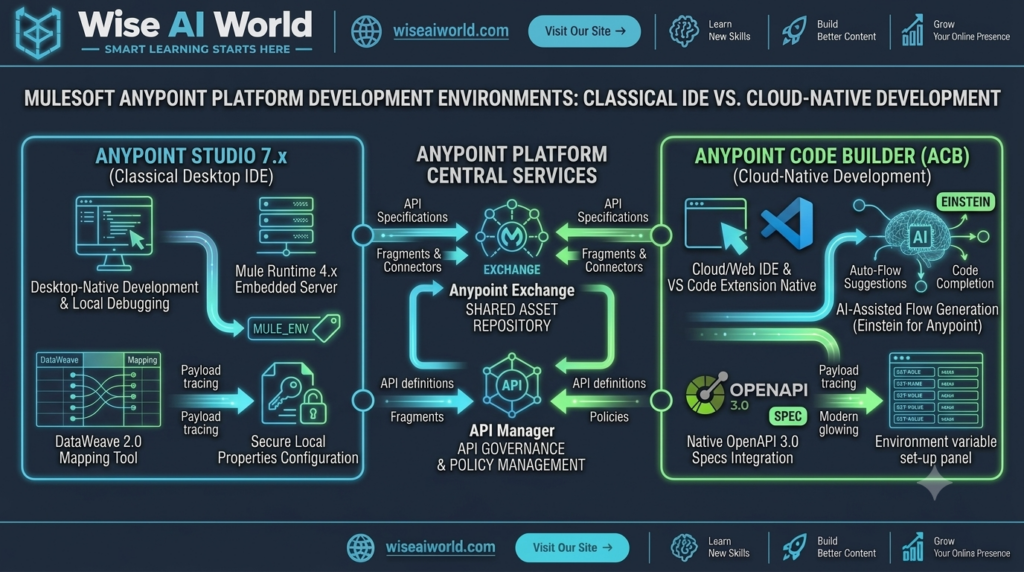
Part 1: Configuring Anypoint Studio 7 for AI Workflows
1. Installing Prerequisites & Mule Runtime
Ensure you have Java Development Kit (JDK) 11 or 17 configured on your workstation. Anypoint Studio requires Java 17 for modern Mule Runtime 4.6+ deployments.
# Verify Java version in terminal
java -version

# Output should reflect OpenJDK or Oracle JDK 17.x
# openjdk version "17.0.9" 2023-10-17
2. Setting Up Secure Property Tools for Secret Management
In AI integrations, API keys for OpenAI, Anthropic, or vector databases must never be stored in plain text inside mule-app.properties or config.yaml files. You must configure the Secure Properties Tool jar file in Studio.
Add the Mule Secure Properties module dependency to your pom.xml file:
<dependency>
    <groupId>com.mulesoft.modules</groupId>
    <artifactId>mule-secure-configuration-property-module</artifactId>
    <version>1.2.7</version>
    <classifier>mule-plugin</classifier>
</dependency>
3. Encrypting Sensitive AI Credentials
Encrypt your AI keys using AES-CBC encryption mode before adding them to your application configuration:
# Syntax to encrypt sensitive API keys
java -jar secure-properties-tool.jar string encrypt AES CBC "YourEncryptionKey123" "sk-proj-YourOpenAISecretKeyHere"

# Encrypted Output Example:
# eN38vKx9.../9xL+qZ==
Store the result in src/main/resources/config-dev.yaml:
openai:
  host: "api.openai.com"
  port: "443"
  apiKey: "![eN38vKx9.../9xL+qZ==]"

vectorDb:
  endpoint: "https://your-pinecone-index.svc.pinecone.io"
  apiKey: "![xP92mKq1.../1zA+rT==]"
Part 2: Setting Up Anypoint Code Builder (ACB) for AI Development
Anypoint Code Builder provides a modern, cloud-native IDE experience. It connects directly with Anypoint Platform, simplifying API design, flow implementation, and deployment.
1. Installing ACB in VS Code
- Open Visual Studio Code (v1.85 or newer).
- Navigate to the Extensions Marketplace (
Ctrl+Shift+XorCmd+Shift+X). - Search for Anypoint Code Builder extension pack provided by Salesforce / MuleSoft and click Install.
- Press
Ctrl+Shift+P(orCmd+Shift+P) and typeAnypoint Code Builder: Sign in to Anypoint Platform. Authenticate with your enterprise credentials.
2. Enabling Einstein for Anypoint (AI Code Generation)
Anypoint Code Builder incorporates generative AI capabilities directly into the flow canvas. When enabled, developers can write natural language prompts to auto-generate DataWeave transformations and Mule flows.
Developer Prompt: "Create a flow with an HTTP listener on /ai/summarize, transform the request body to OpenAI chat completion format using model gpt-4o, and send a POST request to api.openai.com."
Part 3: Hands-On Hands-On Blueprint: Verifying the Setup
To verify that your environment is fully set up and connected to external endpoints, let me build a basic MuleSoft flow that reads an encrypted OpenAI key from configuration and performs a heartbeat connectivity check.
Global Configuration File (`global-config.xml`)
<?xml version="1.0" encoding="UTF-8"?>
<mule xmlns:secure-properties="http://www.mulesoft.org/schema/mule/secure-properties"
      xmlns:http="http://www.mulesoft.org/schema/mule/http"
      xmlns="http://www.mulesoft.org/schema/mule/core"
      xmlns:doc="http://www.mulesoft.org/schema/mule/documentation"
      xmlns:xsi="http://www.w3.org/2001/XMLSchema-instance"
      xsi:schemaLocation="
        http://www.mulesoft.org/schema/mule/core http://www.mulesoft.org/schema/mule/core/current/mule.xsd
        http://www.mulesoft.org/schema/mule/http http://www.mulesoft.org/schema/mule/http/current/mule-http.xsd
        http://www.mulesoft.org/schema/mule/secure-properties http://www.mulesoft.org/schema/mule/secure-properties/current/mule-secure-properties.xsd">

    <!-- Global Configuration for Secure Properties -->
    <secure-properties:config name="Secure_Properties_Config"
                            file="config-${mule.env}.yaml"
                            key="${mule.key}"
                            algorithm="AES"
                            mode="CBC" />

    <!-- HTTP Listener Configuration -->
    <http:listener-config name="HTTP_Listener_config" doc:name="HTTP Listener config">
        <http:listener-connection host="0.0.0.0" port="8081" />
    </http:listener-config>

    <!-- OpenAI HTTPS Request Configuration -->
    <http:request-config name="OpenAI_HTTP_Request_Config" doc:name="HTTP Request configuration">
        <http:request-connection host="${secure::openai.host}" port="${secure::openai.port}" protocol="HTTPS"/>
    </http:request-config>
</mule>
Verification Implementation Flow (`env-verification-flow.xml`)
<?xml version="1.0" encoding="UTF-8"?>
<mule xmlns:http="http://www.mulesoft.org/schema/mule/http"
      xmlns:ee="http://www.mulesoft.org/schema/mule/ee/core"
      xmlns="http://www.mulesoft.org/schema/mule/core"
      xmlns:doc="http://www.mulesoft.org/schema/mule/documentation"
      xmlns:xsi="http://www.w3.org/2001/XMLSchema-instance"
      xsi:schemaLocation="
        http://www.mulesoft.org/schema/mule/core http://www.mulesoft.org/schema/mule/core/current/mule.xsd
        http://www.mulesoft.org/schema/mule/http http://www.mulesoft.org/schema/mule/http/current/mule-http.xsd
        http://www.mulesoft.org/schema/mule/ee/core http://www.mulesoft.org/schema/mule/ee/core/current/mule-ee.xsd">

    <flow name="verify-ai-environment-setup-flow" doc:id="b2c3d4e5-002">
        <http:listener config-ref="HTTP_Listener_config" path="/api/v1/health/ai" doc:name="GET /api/v1/health/ai"/>

        <logger level="INFO" message="Initiating AI Environment Health Check..." doc:name="Log Start"/>

        <ee:transform doc:name="Construct Dummy Payload">
            <ee:message>
                <ee:set-payload><![CDATA[%dw 2.0
output application/json
---
{
  "model": "gpt-4o-mini",
  "messages": [
    { "role": "user", "content": "Ping" }
  ],
  "max_tokens": 5
}]]></ee:set-payload>
            </ee:message>
        </ee:transform>

        <http:request method="POST" config-ref="OpenAI_HTTP_Request_Config" path="/v1/chat/completions" doc:name="Send Test Request to OpenAI">
            <http:headers><![CDATA[#[{
                "Authorization" : "Bearer " ++ p('secure::openai.apiKey'),
                "Content-Type"  : "application/json"
            }]]></http:headers>
        </http:request>

        <ee:transform doc:name="Format Verification Response">
            <ee:message>
                <ee:set-payload><![CDATA[%dw 2.0
output application/json
---
{
  "environment": p('mule.env'),
  "status": "OPERATIONAL",
  "aiProvider": "OpenAI",
  "responseReceived": payload.choices[0].message.content default "No response",
  "timestamp": now()
}]]></ee:set-payload>
            </ee:message>
        </ee:transform>

        <logger level="INFO" message="#['Environment Check Succeeded: ' ++ payload.status]" doc:name="Log Success"/>
    </flow>
</mule>
Troubleshooting Common Environment Setup Errors
Secure Properties Key MissingError: If your flow throwsjava.lang.IllegalArgumentException: Required key not found, pass the encryption key during startup in VM Arguments:-Dmule.env=dev -Dmule.key=YourEncryptionKey123.- SSL/TLS Handshake Failure: When making HTTPS calls to external AI providers from behind corporate proxies, import the provider certificate into your local Java truststore (
cacerts) or add an explicit TLS configuration component inside Anypoint Studio. - DataWeave Preview Invalidation: In ACB, if DataWeave fails to generate live previews for complex AI payloads, verify that the
application/jsonsample payload file is under 2MB and formatted correctly.

Manish Prakash Dubey is an AI educator and technology writer based in India. He founded WiseAIWorld to make artificial intelligence simple and practical for students, professionals, and beginners. His work focuses on AI basics, machine learning, deep learning, NLP, computer vision, and real-world AI tools.
