
Extracting financial metrics from balance sheets, income statements, and cash flow reports is one of the most tedious tasks in corporate finance. Financial documents arrive as unstructured PDFs, scanned images, or complex multi-page files where layout variations make traditional template-based extractors fail.
Manual data entry introduces human error, consumes hundreds of analyst hours per quarter, and delays financial reporting. By combining n8n (an open-source, node-based workflow automation platform) with modern Optical Character Recognition (OCR) and Large Language Models (LLMs), enterprise teams can build production-ready pipelines that parse unstructured financial PDFs directly into structured Google Sheets spreadsheets automatically.
In this step-by-step guide, we will design an automated n8n workflow capable of extracting line items, revenue metrics, and operational expenses from financial statement PDFs into organized Google Sheets rows.
1. High-Level System Architecture: The Financial Extraction Pipeline
Before configuring individual n8n nodes, it is critical to understand how data flows through the automated extraction pipeline.
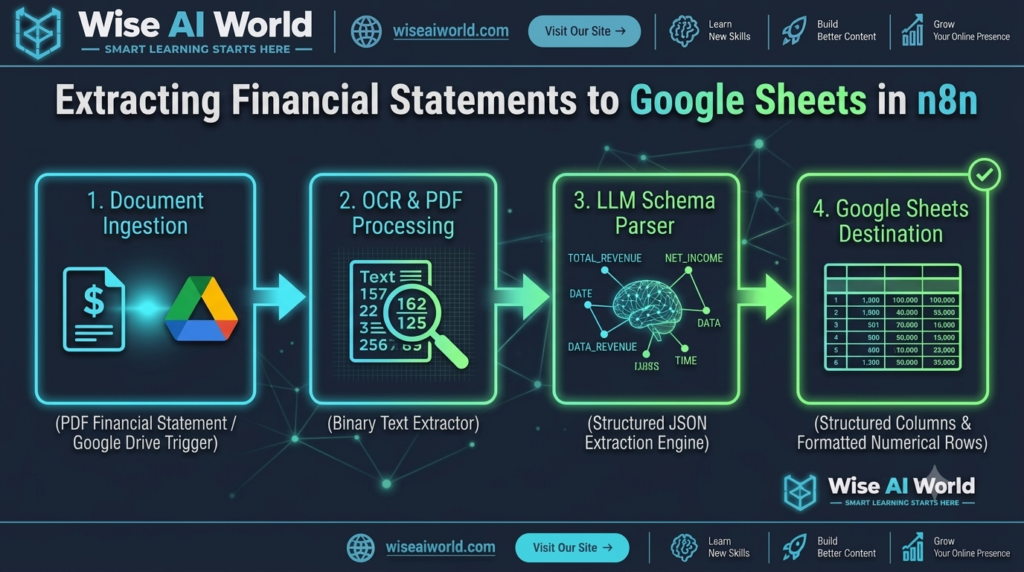
The 5 Core Pipeline Stages
- 1. Ingestion: Captures incoming PDF financial statements via Google Drive triggers, email attachments, or API webhooks.
- 2. Text Extraction & OCR: Converts binary PDF files into searchable plain text or markdown strings using native PDF tools or OCR engines.
- 3. LLM Schema Parsing: Uses a structured prompt with vision-capable or instruction-tuned LLMs to enforce strict JSON schemas for balance sheet line items.
- 4. Data Sanitization: Normalizes dates, strips currency symbols (
$,,,€), and casts text figures into clean numerical floats. - 5. Google Sheets Persistence: Appends or updates rows inside specified Google Sheets worksheets using batch updates.
2. Step-by-Step Guide: Building the n8n Workflow
Follow these step-by-step technical instructions to build and deploy your n8n automated parsing workflow.
Step 1: Set Up the Ingestion Trigger Node
In n8n, create a new workflow and add a Google Drive Trigger node. Set the event to “On File Created” and select your designated incoming financial statements folder. Alternatively, use an n8n Webhook node to accept PDF uploads directly from upstream web applications.
Step 2: Extract PDF Text Content
Connect the binary output of your trigger node to an Extract From File node. Set the operation to Extract Text. For scanned documents, route the file through an OCR engine (such as AWS Textract or Tesseract) to convert image pixels into text strings.
Step 3: Enforce Schema Extraction with an LLM Node
Connect the text output to an AI Agent or OpenAI Chat Model node in n8n. Define a strict JSON schema output to guarantee reliable formatting:
{
  "company_name": "String",
  "statement_period": "YYYY-MM-DD",
  "total_revenue": "Float",
  "net_income": "Float",
  "operating_expenses": "Float",
  "currency": "USD"
}
Use a explicit system prompt directing the model to extract exact financial values without making assumptions or hallucinating figures.
Step 4: Clean and Format Financial Data
Use a Code Node (JavaScript/Python) inside n8n to validate the JSON output. Convert string currencies into standard floats to ensure formulas inside Google Sheets run cleanly:
// Example JavaScript Sanitization in n8n Code Node
const item = $input.first().json;

return [{
  json: {
    company: item.company_name,
    date: item.statement_period,
    revenue: parseFloat(item.total_revenue.toString().replace(/[^0-9.-]+/g,"")),
    net_income: parseFloat(item.net_income.toString().replace(/[^0-9.-]+/g,"")),
    currency: item.currency || 'USD'
  }
}];
Step 5: Write Parsed Data into Google Sheets
Add a Google Sheets node to the canvas. Set the action to Append Row. Select your destination document ID and map the JSON variables (company, date, revenue, net_income) directly to your sheet columns.
3. Technical Comparison: OCR vs. LLM Structured Extraction
Choosing the right extraction technology depends on document layout complexity and budget parameters.
| Extraction Approach | Best Used For | Key Advantage | Primary Limitation |
|---|---|---|---|
| Regex & Text Parsers | Standardized, static PDF invoices with identical layouts. | Zero API cost, deterministic output, extremely fast. | Fails completely if a single column shifts or changes layout. |
| OCR Engines (Textract/Tesseract) | Scanned paper documents, physical receipts, non-searchable PDFs. | Extracts raw text from low-resolution scans. | Requires downstream parsing to understand table context. |
| Vision LLMs + Structured Output | Multi-page financial statements, complex tables, varying global formats. | Understands semantic context, handles variable layouts dynamically. | Requires API token budget; requires validation checks. |
4. Enterprise Edge-Case Handling & Reliability
Production-grade financial pipelines must handle non-standard edge cases gracefully to avoid polluting corporate records.
Handling Multi-Currency Reports
Financial statements from global subsidiaries frequently report in foreign currencies (EUR, GBP, JPY). Incorporate a foreign exchange (FX) conversion node in n8n immediately following the LLM node to convert foreign values into a single reporting currency based on historical daily exchange rates.
Implementing Error Handler Branches
Set up an n8n Error Trigger Node attached to your main workflow. If the Google Sheets API limits out or the LLM output fails schema validation, route the error payload to a Slack channel or team inbox for manual review.
5. Summary & Workflow Configuration Summary
| n8n Node Name | Node Type | Primary Task |
|---|---|---|
| Google Drive Trigger | Trigger Node | Detects new PDF financial upload. |
| Extract From File | Core Transformation | Parses raw binary PDF into raw text string. |
| Information Extractor (LLM) | LangChain / AI Node | Maps unstructured text into JSON schema. |
| Data Sanitizer | Code Node (JS) | Cleans strings into numerical values. |
| Google Sheets | Integration Action | Appends structured rows to destination workbook. |
Disclosure: WiseAIWorld independently evaluates automation platforms, LLMs, and enterprise tools. Some links on this site contain affiliate tracking links. If you sign up through our links, we may receive a small commission at no additional cost to you.

Manish Prakash Dubey is an AI educator and technology writer based in India. He founded WiseAIWorld to make artificial intelligence simple and practical for students, professionals, and beginners. His work focuses on AI basics, machine learning, deep learning, NLP, computer vision, and real-world AI tools.
